Tuesday, December 28, 2010

Kingston HyperX MAX 3.0, A USB 3.0 V+100 SSD


Although OCZ was first on the market with a USB 3.0 enabled SSD with its Enyo drive, competitors are knocking down the doors and bridging the gap. We saw the first lower cost USB 3.0 SSD with Kingston's DataTraveler Ultimate 3.0, however the JMicron JMF612 controller it was based on didn't really impress. The only thing the DataTraveler Ultimate 3.0 had going for it was a lower total cost for the smaller capacity versions.

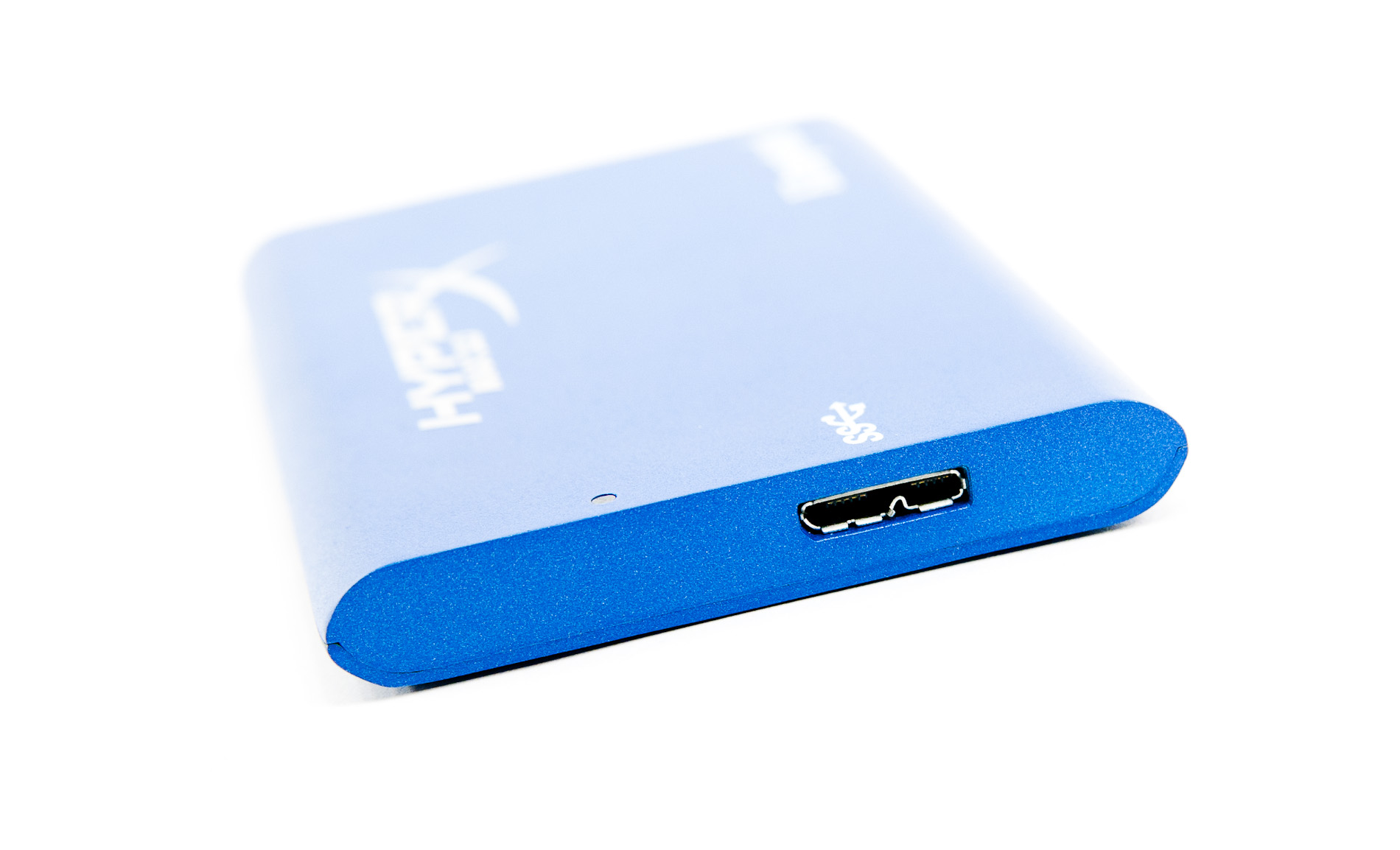
The sole LED on the HyperX MAX 3.0 turns green when running in USB 2.0 mode, blue when in 3.0 mode

The drive comes with a USB 3.0 cable, don't lose it as there's no USB 2.0 port
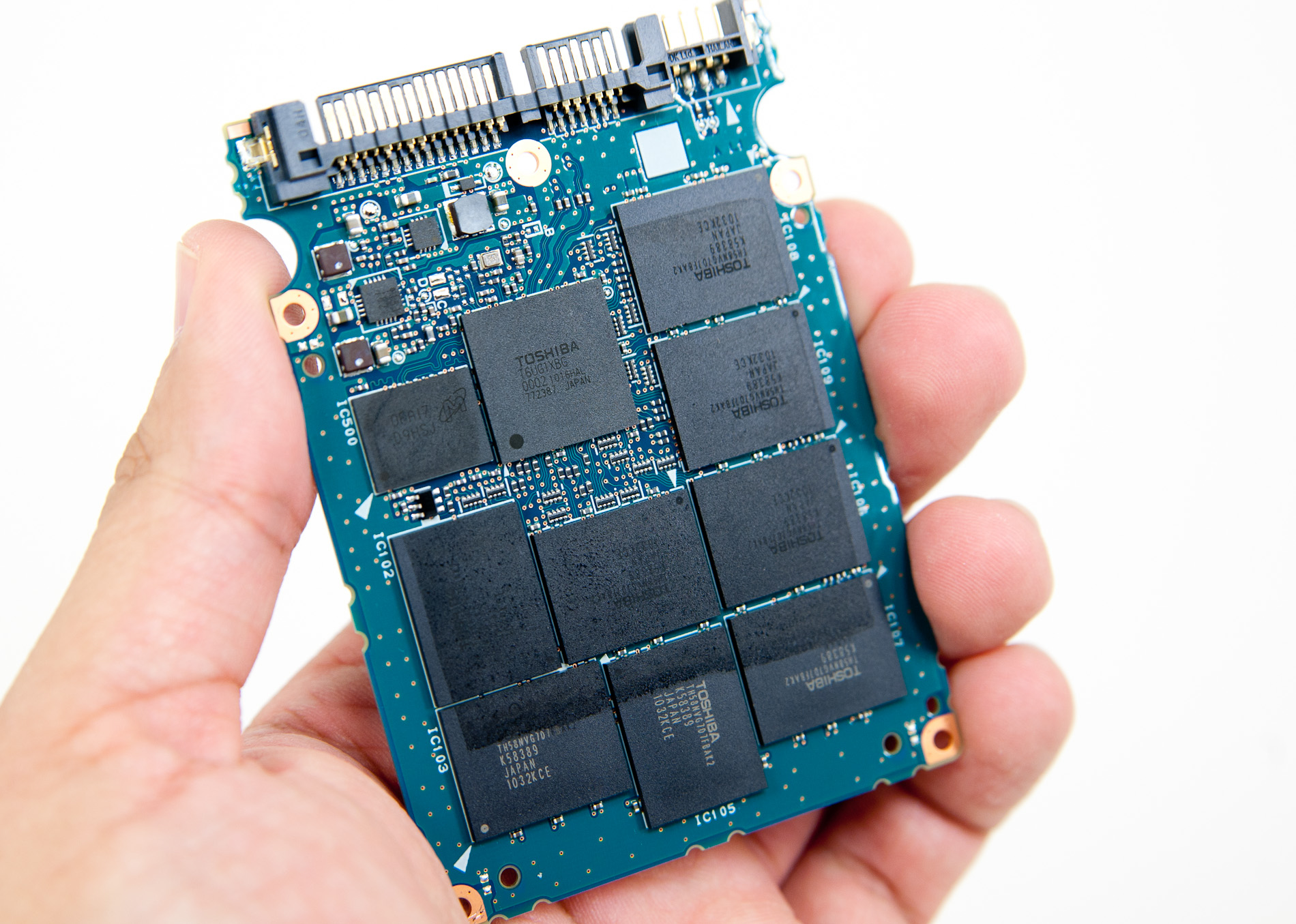
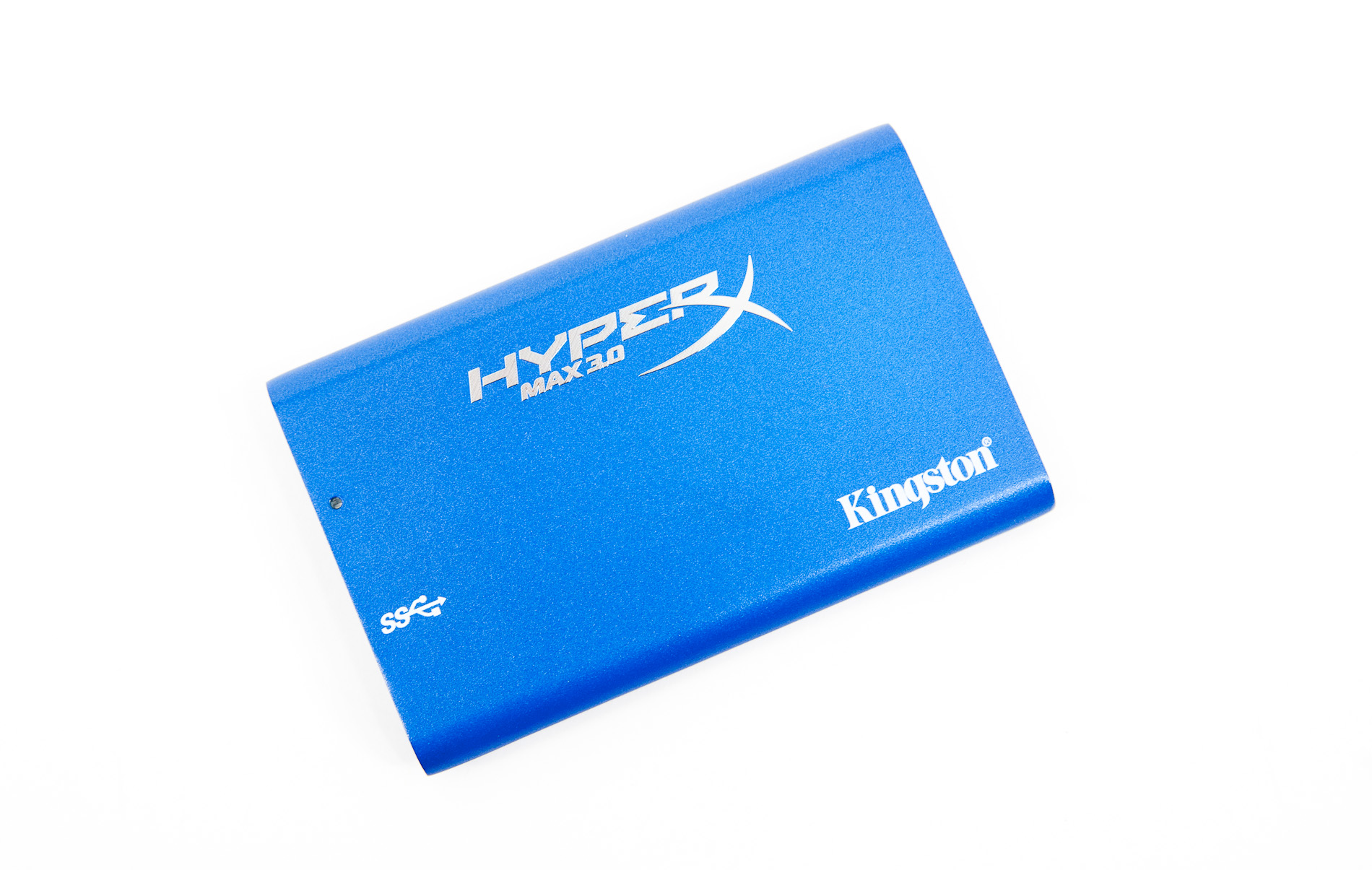
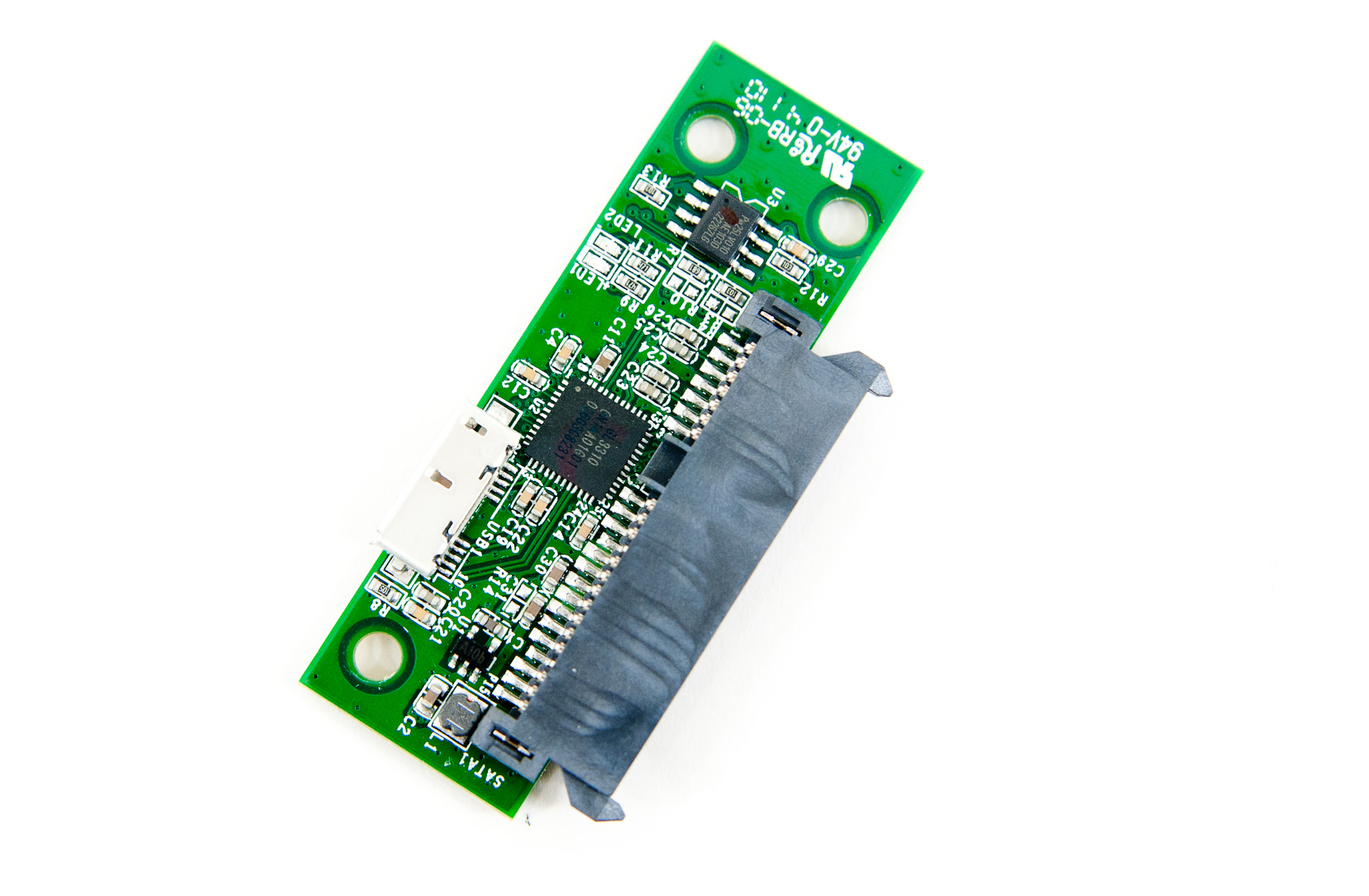
Hot on the heels of the release of its unusually potent V+100 SSD, Kingston aims its sights at the high end with its second USB 3.0 SSD: the HyperX MAX 3.0. Borrowing a brand from Kingston's enthusiast memory line, the HyperX MAX 3.0 is literally a SSDNow V+100 SSD paired with a SATA to USB 3.0 bridge PCB:
The blue PCB is near identical to what we saw in the V+100 we reviewed:
Except in this case it plugs into a secondary PCB that bridges the 3Gbps SATA interface to a USB 3.0 interface:
The end result is an external SSDNow V+100 for those who want to carry around a decent amount of data and want very fast access to it.The HyperX MAX 3.0 uses the same Toshiba T6UG1XBG controller from the V+100. In our review of that SSD I found the new Toshiba controller actually did very well in real world workloads as well as maintaining sequential write speed even when peppered with random data. I originally attributed its behavior to a very aggressive garbage collection policy, however there may be other elements of Toshiba's architecture at work here (more on this in an upcoming article, hopefully).
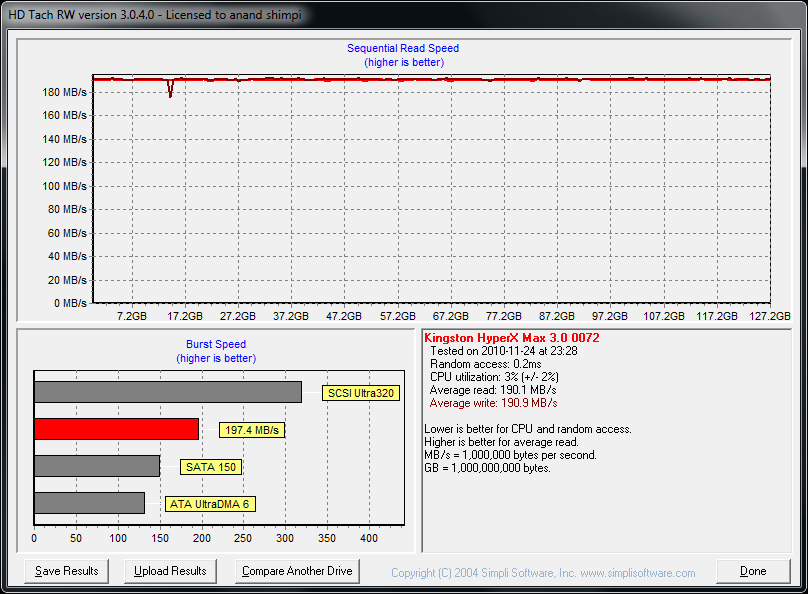
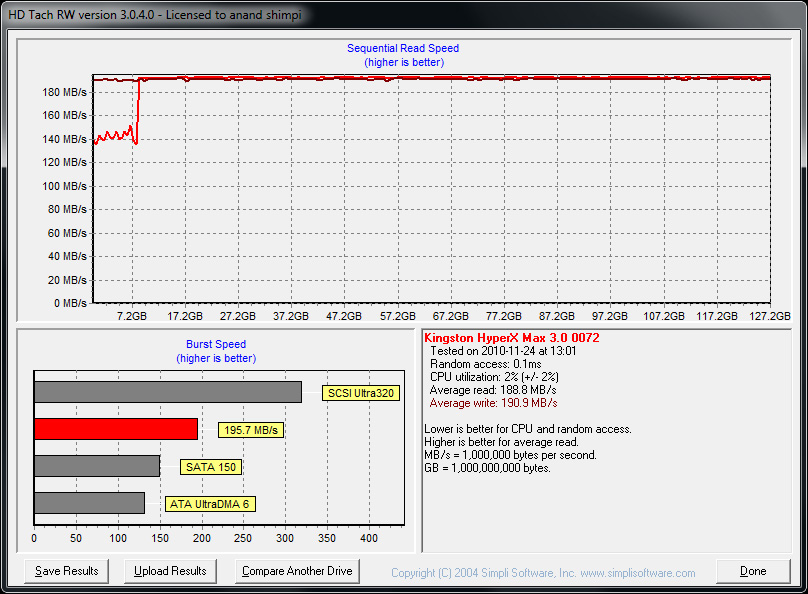
The V+100 is probably the best platform you can think of today for an external SSD because its performance is so resilient. I took the HyperX MAX 3.0, filled it to its capacity, then wrote random data at a queue depth of 32 IOs across the entire drive for 20 minutes. While this process tanked random write speed on the drive, sequential performance was nearly untouched:
What this means is that under normal use as an external drive, it doesn't really matter what you copy to the drive or how often you use it. The drive won't lose sequential read or write performance - you'll still be able to copy movies, photos or whatever large files you've got at full speed. In fact, the worst I ever saw performance drop to was ~135MB/s after a bunch of random writing. After less than an hour of idle time the drive was back up to writing at full speed again across the entire drive.

Read more...

10G Ethernet: More Than a Big Pipe


10G Ethernet can deliver about 9 Gbit/s per second. We compared it with the typical link aggregated quad-port gigabit “NIC”. Quad-port link aggregation (IEEE 802.3 ad) is considered the “sweet spot”, both from a performance and an economic point of view. The results made 10G Ethernet really attractive: 10Gbit Ethernet actually consumed less CPU cycles than the quad-port link aggregated solution while delivering more than twice the bandwidth (9.5 Gbit/s vs 3.8 Gbit/s). It also features lower latency than quad-port NICs.
And 10G is hardly expensive: the least expensive dual 10G NICs cost about 50% ($600-700) more than the quad-port gigabit NICS ($400-450). Even the more expensive 10G cards (>$1000) offer a competitive bandwidth (2x 10G) per dollar ratio and offer a much better performance per watt ratio too. Typical power usage of dual 10G card is between 6W to 14W. The best quad gigabit NICs go as low as 4.3 W, although 8.4W is also possible.
10G Ethernet is much more than “a bigger pipe” for your (virtualized) network traffic. Let our knowledgeable IT professionals commenting on our last 10G Ethernet article enlighten you:
“In the market for a new SAN for a server in preparation for a consolidation/virtualization move, one of my RFP requirements was for 10GbE capabilities now. Some peers of mine have questioned this requirement stating there is enough bandwidth with etherchanneled 4Gb NICs and FC would be the better option if that is not enough. The biggest benefit for 10Gb is not bandwidth, it's port consolidation, thus reducing total cost.
To understand this just look at the picture below.
A virtualized server might need I/O ports for:
  • Console and management traffic (Ethernet)
  • VM migration (Ethernet)
  • VM Application network I/O (Ethernet)
  • Block Storage I/O (Fibre Channel)
  • File Storage I/O (Ethernet)
For speed and availability reasons, you quickly end up with two ports for each traffic flow, so you might end up with up to 10 ports coming out of one server. You might even need more: an IP based KVM to access the physical host and another port for server management interface (ILO, DRAC…).
Read more...

Sunday, December 26, 2010

Micca Slim-HD: 1080p In Your Pocket


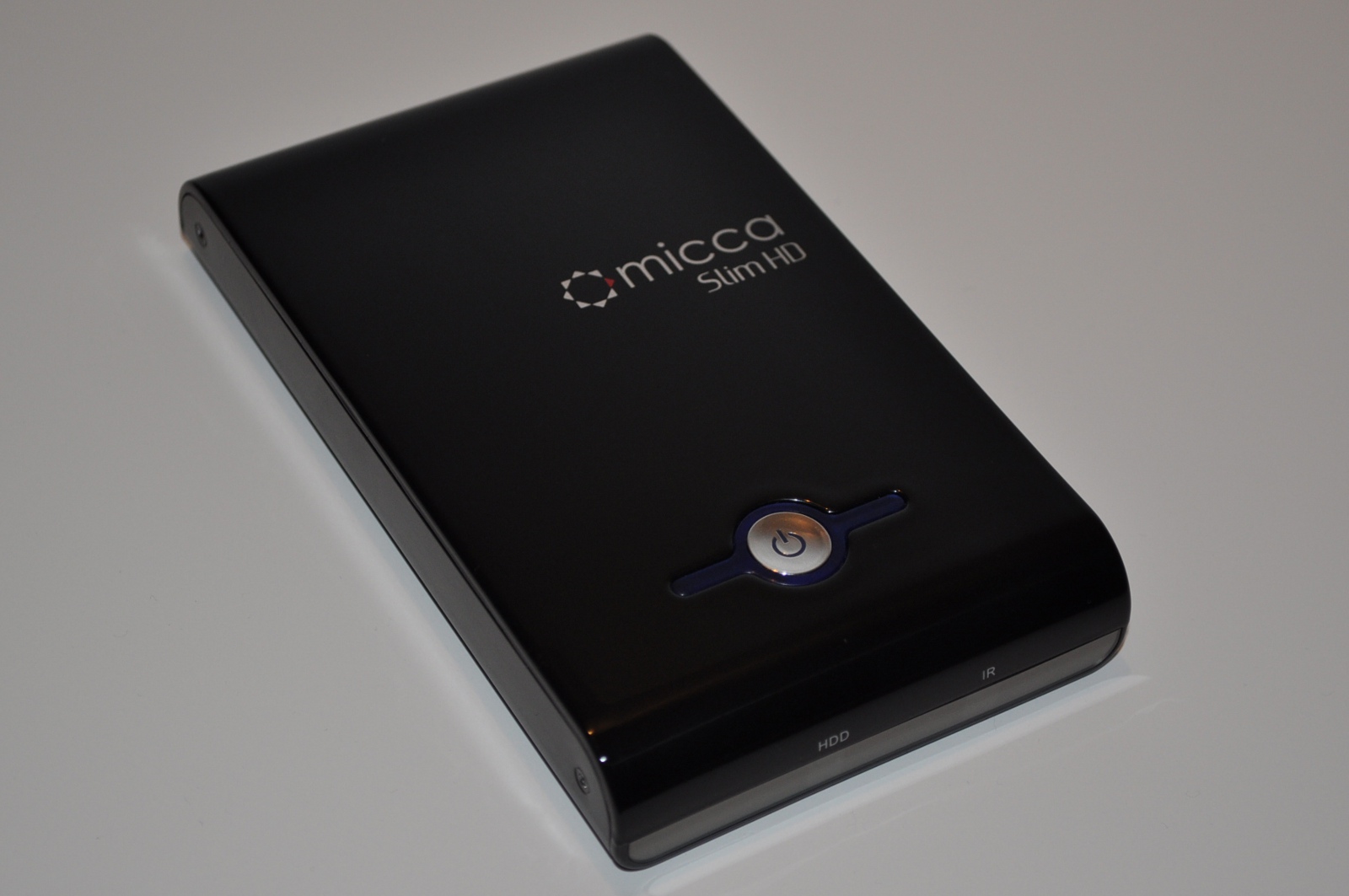
Last year, Micca released a hard drive based portable media drive called the Slim HDD Digital Media Player (imaginative, I know). Based around a standard 2.5” notebook hard drive, the Slim DMP could handle a wide range of containers and formats and had a 720p HDMI output. At $59 sans drive (now down to $49), it represented a solid value and even without too many premium features, it was a very functional media player at its core. Now we’ve got Micca’s followup device, the Slim-HD Portable 1080p Full-HD Digital Media Player (for the rest of the review, I think I’ll stick to calling it the Slim-HD just for sanity’s sake).

The Slim-HD basically takes the Slim and adds 1080p playback capability, along with support for more video and audio codecs, notably FLAC and DTS. The price is now $79 without drive, and includes a remote, the composite A/V cable, USB cable, and AC adapter. Beyond playing videos, music, and pictures, the Slim-HD doesn’t do a whole lot - no fancy Netlfix playback or internet streaming here like on the WD TV Live Hub we looked at recently. It’s an honest to god media player in the simplest form - just plug it into your TV, navigate to the file you want, and away you go.


As with the original Slim, Micca is aiming for the entry to mid-level market, with a focus on the compact form factor, ease of use, and the ability to use it as a portable USB drive. They don’t intend it to be a high end product, but instead as a portable media drive that can play 1080p content. Does it live up to the goals set for it, or does it fall short of the more fully featured competition?
Read more...

The Boxee Box Review

Content aggregation has been instrumental in the development of the web. In the early days of the web, destinations held all the power. If you wanted news or reviews you went to news and review sites, consuming the content they had to offer at each individual website. Email newsletters were the first to really change the manner in which content was consumed online. Instead of visiting a website to read the latest it had to offer, you got an email in your inbox with either complete content or enough of a teaser for you to decide whether or not you were interested in it.
These days we have many more ways to get access to written content on the web than a simple newsletter. There’s RSS, Twitter and Instapaper among others. It generally works well. RSS didn’t stop users from visiting websites, neither did Twitter and Instapaper hasn’t spelled the end of the front page either. If anything all of these technologies have helped make consuming content online easier. While the front page of any website today isn’t quite as big of an example of prime real estate as it was 10 years ago, it’s still quite valuable.
I mention this history for one important reason: we haven’t seen the same progress with aggregating and distributing television content on the web. These days you can find a lot of cable TV content on the web, usually posted the day after the shows air live on cable TV. All of the major networks support it. Visit Fox.com, NBC.com or CBS.com and you’ll be greeted with ways to watch all of the shows they air via the web. The content is all out there, and it wouldn’t be too difficult to aggregate it all into one cable-TV-like interface. In theory, with what’s posted online already, you could pull the plug on cable and just rely on video over the web without missing much. It’s just not quite as easy as a cable subscription with a DVR. This is where Boxee comes in.
Front and center at the official Boxee website is the intent:
“A lot of your favorite shows and movies are already available on the Internet.
Boxee is a device that finds them and puts them on your TV. It’s easy to use and even better, there’s no monthly fee.“
I couldn’t have said it better myself. Boxee’s software was branched off of the Xbox Media Center project and now includes a lot of Boxee’s own code on top of the XBMC base. It’s freeware and available for Linux, OS X and Windows. No strings attached.
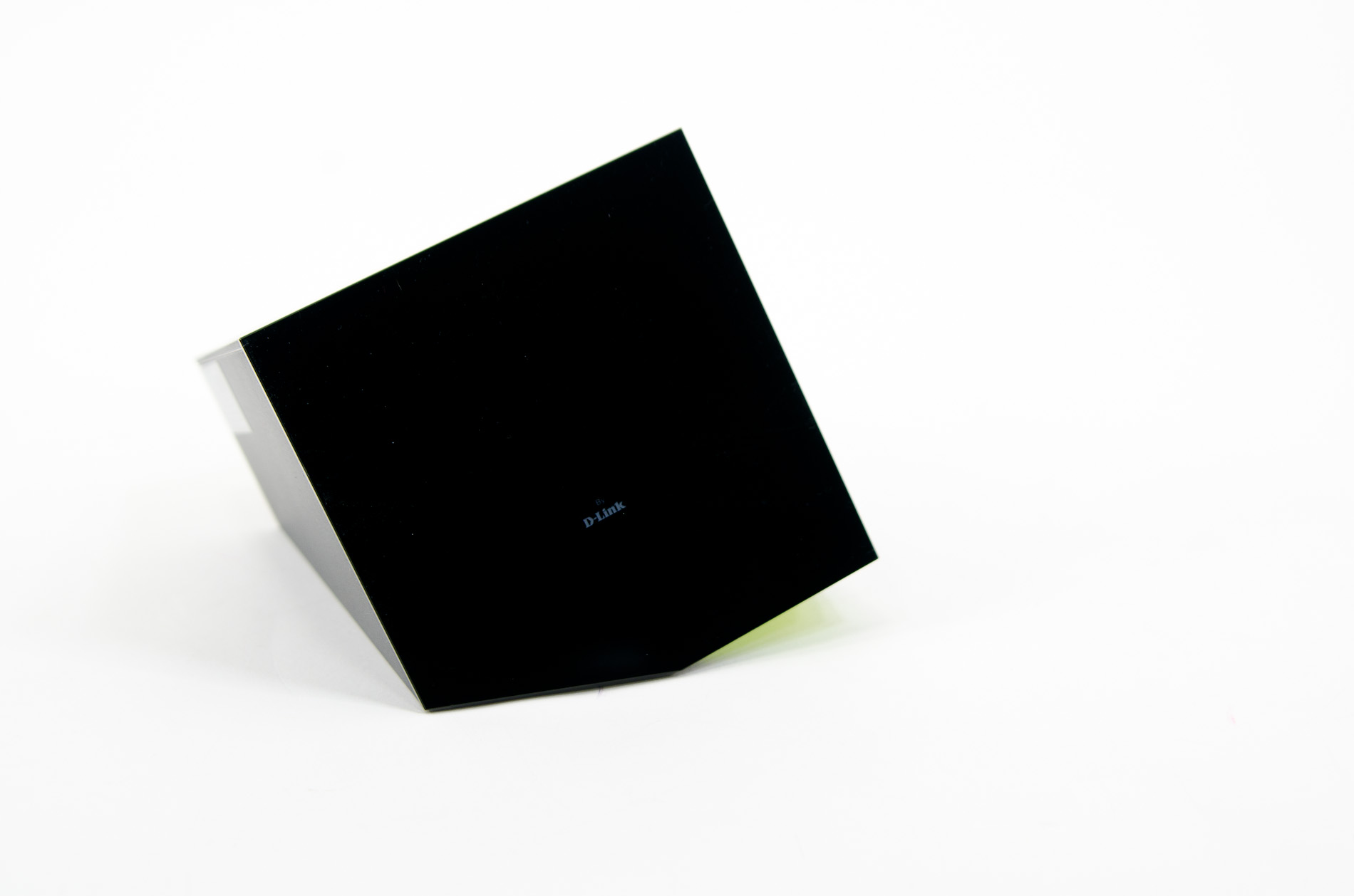
Just as people used ION to build XBMC boxes, Boxee encourages users to do the same and build their own Boxee boxes. And if you don’t want to bother building your own, Boxee teamed up with D-Link to build the Boxee Box by D-Link:
Boxee and D-Link's joint work on the Boxee Box became public knowledge around a year back. The streamer itself made a public appearance at the 2010 CES based on NVIDIA’s Tegra 2 SoC. In fact, it was the first platform to publicly demonstrate Tegra 2. However, Tegra 2 wasn’t able to support the high bitrates Boxee was targeting. Further testing made it necessary for Boxee and D-Link to shift to an Intel based platform: the Atom based CE 4100. Intel's SoCs have never been popular in the consumer space. The recent push for the 'Smart TV' by Intel however, has the scope to change that. Multiple Google TV platforms have already been introduced, but they are all priced out of range of the mass market. In this context, the Boxee Box, priced at $199, appears to be the ideal product to bring Intel's SoC technology to the consumers.
Boxee has a huge following all around the world for their extension of the XBMC platform. The Boxee Box is their first endeavor to bring Boxee (and XBMC) out of the HTPC niche and into the living rooms of the average consumer, and eventually lead them to a source of revenue. D-Link's media streamer product lineup has recently been facing stiff competition from the likes of Western Digital, and it was necessary for them to come up with an innovative product to remain relevant in this space. Ideally, D-Link would like their partnership with Boxee to help them reclaim some of their lost ground in the media streamer market.
With so many players having a stake in the success of the Boxee Box, it was no wonder that expectations were high. Intel's name on the box suggested that it could be the ideal HTPC replacement, with a small form factor. Boxee's involvement ensured that the user interface would be one of the best in the media streamer market. And D-Link guaranteed retail presence.
The ingredients all look good. We spent the past week testing the final product. So, how did the Boxee Box fare when we put it to the test? Read on to find out.
Read more...

Windows Home Server v2 'Vail': Drive Extender v2 Dismissed


Microsoft’s storage pool and data duplication technology for Windows Home Server – based upon the first preview release of Windows Home Server “Vail”. In “Vail”, Microsoft was going to significantly overhaul this cornerstone piece of technology for WHS, replacing the file-centric Drive Extender v1 with the block-centric Drive Extender v2. In a nutshell DE v2 was intended to fully modernize the underpinnings of Drive Extender by bringing it closer to contemporary peers like ZFS, and in turn bringing with it a number of performance, compatibility, and data reliability benefits.
With such a change would also come some drawbacks compared to the existing implementation of Drive Extender, but it’s nothing we expected Microsoft wouldn’t be able to surmount. Certainly everything seems to have been firing on all cylinders over at Microsoft, as WHS “Vail” was joined by 2 additional business-focused WHS offshoots, Windows Storage Server 2008 R2 Essentials and Windows Small Business Server 2011 Essentials.
So imagine our utter shock when we found out that Microsoft is going to be removing Drive Extender entirely from “Vail” and the rest of its offshoots. Effective immediately, Microsoft is dropping Drive Extender from all of these second-generation WHS operating systems, and instead will be releasing these OSes without a native storage pool/duplication feature.
Ultimately Microsoft is citing the feedback based on the potential drawbacks of DE v2 such as the inability for other OSes to read DE v2 disks, and what Microsoft believes is a diminished need for DE with the availability of 2TB+ hard drives. The needs of “Vail’s” two business-class offshoots may have also played a part, as Microsoft notes that “our development for these products is very closely tied, a decision like this affects all three.” What we can easily imagine however is that DE v2 development was not going as well for Microsoft as they hoped, as OS programmers and drive makers alike can tell you just how difficult it is to design a new product/filesystem while avoiding corruption – even Microsoft got it wrong the first time. DE v2 by extension was going to be pushing the envelope as far as what any consumer filesystem was capable of.
In any case at this point we’re still trying to scoop our jaws off of the floor. Drive Extender is by no means the only major feature of Windows Home Server – least we forget remote access and client backups – but it’s certainly a cornerstone of the OS and goes hand-in-hand with the OS’s file server capabilities. The loss of DE further blurs the line between WHS and Linux, not to mention reduces the separation between it and dedicated NAS boxes.
Ultimately however this is only the beginning of the story for WHS “Vail”; Microsoft has made it clear there’s still a great deal to discuss about “Vail” at CES next year, so hopefully by then we won’t be left scratching our heads at where exactly Microsoft is going with the next iteration of their Home Server line of OSes.
Read more...

Saturday, December 25, 2010

SSD Performance: TRIM And Firmware Updates Tested


Solid state drives can deliver exceptional performance, but they're not necessarily fire-and-forget upgrades. You'll only really get the best possible experience from them if you pay attention to details like TRIM support and available firmware updates.
The SSD vendors’ marketing divisions simply do not tire of citing insanely high MB/s throughput numbers and sky-high IOPS. While these figures aren't inaccurate, per se, they don't necessarily reflect the truth either. Everyday operation does not equal the hygienic test conditions laid out carefully to maximize numbers. In the end, this means that the mentioned performance specifications can, in fact, be reached, but it takes some optimization.
Zoom
I’ve got one of the best SSDs, what do I care?
The fact alone that a brand new SSD is known for being fast and furious does not mean that it really is. Are you using the latest SATA storage drivers? Have you ever checked if AHCI mode is enabled in your BIOS? Would you be sure that the TRIM feature is actually working? Could it be that there is a newer firmware version for your solid state drive? Might a recent configuration change have impaired your storage performance? If you've recently spent as much on storage as other folks spend on an entire netbook, it’s legit to spend some time investigating the bang for your buck.

We’ve seen both extremely great and incredibly poor performance results on SSDs, and the reasons behind a negative performance experience can vary. First of all, it is important to use a decent product. While it used to be easy to judge hard drive performance, the characteristics of solid state drives depend on many variables. Most of the consumer SSD products available today are based on several channels of MLC NAND flash memory and one of the popular controller architectures. Intel’s X25 family has been very strong, with specific weaknesses when it comes to write throughput. The Indilinx hardware contributed to the breakthrough of SSDs by maximizing throughput. Crucial’s RealSSD C300 is still the king when it comes to raw bandwidth, thanks in part to a 6 Gb/s interface, but it was Sandforce’s SF-1200 controller that first showed us that high throughput and stellar I/O performance go hand in hand. The most recent SSD contender Samsung’s 470-series SSD, which we used for this performance evaluation.
We've already mentioned a few factors that can influence performance, and we found that it is important to check all of them. In this article, we’ll be looking at a recent firmware update, and then check performance levels with and without the TRIM feature enabled.

Many people consider SSDs to be a nice upgrade option, even for older systems, as the impact of a much-accelerated storage subsystem is extremely noticeable. However, SSD performance is partly and sometimes largely defined by a system’s ability to handle large amounts of I/O activity. This means that an SSD will only deliver peak performance if it is hosted on a fast system. We found that even a high-end SSD delivers 10-20% less performance if operated on a computer with insufficient CPU horsepower. This has happened to us on older Pentium 4 or early-generation Athlon 64 machines with single-core CPUs. Hence, we recommend that you first spend money on a decent platform before worrying about sinking hundreds of dollars into a solid state drive.
A minimum level of performance isn't just limited to the processor, either. It also includes your storage controller. While 6 Gb/s SATA is nice to have, there is currently only one SSD product available that would take advantage of the increased headroom. If you’re looking at an SSD that has a 3 Gb/s interface, then a 3 Gb/s interface is all you need. However, pay attention to the controller specification: only an AHCI device (Advanced Host Controller Interface) will be able to fully support an SSD, which means that a legacy controller almost always results in decreased performance, simply because it cannot handle all commands, such as queuing and TRIM.

A final system check should also include your driver situation. Are you sure that you’re running the latest available storage driver? If not, it makes sense to simply download and install the latest version, as up-to-date software is required for the exact same reason as a AHCI controller: you definitely want to make sure that an SSD is fully supported. And lastly, any hardware configuration change might cause issues on the storage side. We’ve seen systems with SSDs dropping to only ~10 MB/s maximum throughout after we exchanged the storage controller. Although Windows automatically detected the new device and installed the software, we could only regain maximum SSD speed after uninstalling and reinstalling the storage drivers.
Needed: TRIM Support
Data management is simple on hard drives, as information is stored in individual blocks that follow a logical count through LBA (logical block addressing). The hard drive typically knows where to locate individual blocks, and it can reposition its heads to a certain track to read or write them. It can do this one by one for each and every block.
NAND flash memory has its own idiosyncrasies. One of them is the limited life span of flash memory cells that forces SSD makers to work with wear leveling algorithms in an effort to even out the life expectancy of all memory cells used on a solid state drive. Another characteristic is the fact that MLC flash memory has to be erased before it can be written, and that drives typically work with larger block sizes than those of the operating system (512 KB vs. 4 KB). This means that a few kilobytes write operation triggers an entire block to be read, erased, modified, and written. As you can imagine, this takes some time and it wears all involved memory cells. The FTL (Flash Transition Layer) is utilized to map physical data to logical LBA data, but I believe you can imagine that it’s quite a bit of work for the controller to balance wear leveling and performance. This is commonly known as write amplification. It is expressed through a simple number that tells you the percentage factor of write data that is actually written.
TRIM is a feature that facilitates the controller’s work. It is a command issued by the operating system and basically enables an SSD to eliminate the garbage collection overhead. Any deletion triggered by the operating system at the page level will not immediately execute a physical erase. Instead, the pages are marked as available. Any erase operation always involves the entire block, even though only one page might be affected. Thus, TRIM takes care of the overhead associated with writes in the background, preventing a slow-down when the write actually occurs.
Requirements
First of all, you need an SSD that supports the TRIM feature. This is the case for almost all products available on the market today, but TRIM can technically be added to older SSD designs through a firmware update. However, most vendors seem to have abandoned older solid state products, instead using TRIM as a differentiator on newer drives. To be safe, you're better off not searching for a deal in the clearance bin; just buy one of the newer drives and avoid those support issues.

Secondly, you need an AHCI-compliant SATA storage controller. The Advanced Host Controller Interface has been available for a few years, and even if your system supports AHCI, this mode has to be switched on in the BIOS. Make sure that you use the latest storage drivers as well.
Lastly, the operating system also needs to support TRIM. This is the case on all editions of Windows 7 and Windows Server 2008 R2, Linux 2.6.33, Open Solaris, and FreeBSD 8.1. If you're using an operating system that doesn’t support TRIM, but have compatible hardware otherwise, then you can also use a TRIM utility like hdparm for Linux to manually trigger the command. Be careful with other tools, though, as it is possible to physically reset an SSD as well. This is commonly known as sanitization and should not be confused with TRIM, as sanitizing a drive means to fully erase it.
Wanted: Latest Firmware
We’ve tried many firmware updates on different storage products. Therefore, we can tell you that SSDs are among the most sensitive components around when it comes to firmware modifications and their effect on performance. RAID adapters can typically be adjusted for different application scenarios by altering the firmware, but hard drive or optical drive firmware updates are usually something like a maintenance fixe. In the case of SSDs, it’s an entirely different story.
Intel’s first X25-M drive didn’t deliver a lot more performance than it does today when Intel started to ship its first updates, but the drive actually managed to maintain high levels of performance, even in high load scenarios. This was back at a time when TRIM was not yet available. Therefore, it was up to the drive to maintain performance levels that users expected.
During our testing for this piece, where we were trying to show the difference between TRIM enabled and disabled, Samsung happened to release a new firmware version for the 470-series SSD. Hence, we decided to repeat our tests with the new 0701 and add the results to the numbers we obtained with the 0601 version. It turns out that the new firmware not only increases overall performance, but it also assists in minimizing the performance impact if TRIM is disabled. For users who want or need to operate an SSD in an imperfect system without TRIM support, this fact might be very important.

System Hardware
HardwareDetails
CPUIntel Core i7-920 (45 nm, 2.66 GHz, 4 x 512 KB L2 Cache, 8 MB L3 Cache)
Motherboard (Socket 1366)Supermicro X8SAX
Revision: 1.0, Chipset Intel X58 + ICH10R, BIOS: 1.0B
RAM3 x 1 GB DDR3-1333 Corsair CM3X1024-1333C9DHX
ControllerHighPoint Rocket 620
HDDSeagate NL35 400 GB, ST3400832NS, 7200 RPM, SATA 1.5 Gb/s, 8 MB Cache
Power SupplyOCZ EliteXstream 800 W, OCZ800EXS-EU
Benchmarks
Performance MeasurementsPCMark Vantage 1.0.2.0
System Software & Drivers
Operating SystemWindows 7 Ultimate
Intel Rapid Storage ManagerVersion 9.6

Test SSD: Samsung 470 Series, 256 GB

Zoom
We used Samsung’s new 470-series SSD, also known as the PM810, for this article. It is one of the newest SSDs available, so we were curious about its general performance characteristics. Therefore, we had to deliver a little torture test to really push the drive as hard as possible, hoping to show the differences with and without TRIM, and the 0601 vs. 0701 firmware versions.

It is possible to switch TRIM support on and off in Windows 7, which we used for our testing. There is a very simple way:
To enable TRIM (if it's disabled), go to command prompt and type:
fsutil behavior set disabledeletenotify 0
To disable TRIM, to go command prompt and type:
fsutil behavior set disabledeletenotify 1
Note: you need administrator rights to execute fsutil.
First, a few words on TRIM and performance. It has become rather difficult to push an SSD to its limits, given the most recent high-performance products. For our testing, this meant coming up with a solid workload in order to tax our test platform. In the past, you only had to run a few I/O-intensive tests and some throughput workloads to trigger a significant performance drop.
It took a lot more effort with the test drive. We used the Iometer database test pattern that reads and writes lots of small blocks onto the physical medium. We prefer this over a logical volume because it doesn’t allow the SSD to quickly recover and maximize performance. Then, we copied roughly one million different files onto the SSD until the 256 GB of available capacity was approximately 80% filled. We immediately deleted all the files again and ran the storage test of PCMark Vantage. Here is the exact methodology:
  1. Sanitize SSD
  2. Create volume and format
  3. Run PCMark Vantage (results labeled ‘fresh’)
  4. Delete volume
  5. Run 3 hours of Iometer, database test pattern Q1 to Q32, 30 minutes each
  6. Create volume and format
  7. Copy 37 instances of our USB thumb drive test data onto the SSD (1+ million files)
  8. Delete files
  9. Run PCMark Vantage (results labeled ‘tortured’)
  10. Wait 30 minutes
  11. Run PCMark Vantage (results labeled ‘after 30 minutes idle’)

This way we received three different PCMark Vantage performance results under different conditions. Let’s see how these differ.


Application loading performance reaches 118 MB/s on a fresh 470-series SSD with the older 0601 firmware with TRIM enabled. The two other results after our torture testing are 99 and 98 MB/s, which means that the drive shows a performance impact due to the significant workload and still achieves 84% of its initial performance. However, running the exact same scenario without TRIM would put the drive back to 84 MB/s in a clean state and 62/64 MB/s after the torture testing. Clearly, TRIM makes quite a difference.
The new firmware turns out to be a real game changer, as the drive goes up to 141 MB/s with the 0701 release. The performance level to which it drops after the torture test is 127 MB/s, or 90%, which means that overall performance, as well as TRIM efficiency have improved. But even if TRIM is switched off, the drive recovers faster from the torture test after our 30 minute idle period.

The gaming results are similar, but the differences are less significant.

In the video editing test, the new firmware doesn’t improve maximum performance, but it has a very positive impact by making the drive more resilient against our torture testing.


Windows Defender hardly involves any write operation, which is why there are only small differences here.

Windows Media Center performance is now a bit more solid with the firmware release 0701 and TRIM switched on.

Adding music to the Windows Media Player happens with a minimum performance impact on the 0701 firmware and with TRIM, as the drive remains at 132 MB/s and up, while the older firmware had to admit defeat to our torture testing, delivering 87 MB/s on the third PCMark Vantage run after 30 minutes idle time.


Adding images to the Windows Photo Gallery is not a very relevant test, as we’re talking about large size files that can all be handled at high performance. Clearly, smaller files are more challenging to write to SSDs.

The new firmware improves the Windows Vista startup performance, but just a bit.

Overall, the new firmware has quite a nice impact on PCMark Vantage, with or without the TRIM feature.

We learned quite a bit from the results, although we didn’t go through our entire suite of benchmarks because of time constraints. Each run takes roughly five hours to complete, which was the main reason why we decided to go with PCMark Vantage. The benchmark may be synthetic, but it actually reflects everyday performance rather well. The Samsung 470-series SSD drives we used are new, and pretty much representative of today's solid state storage market when it comes to an analysis of TRIM and the potential impact of a solid firmware upgrade.
The results clearly show that you definitely want to go with a system that supports TRIM. Although the overall performance levels are almost identical with and without TRIM (‘fresh’ test runs), a SSD without TRIM suffers from severe performance drops if you start torturing it with high-intensity workloads, especially if they involve sequential activity (high capacity) and a large number of I/O operations. This type of torturing may already occur with a few concurrent P2P downloads happening alongside other user activity, although our scenario was designed to be more extreme, of course. The conclusion for TRIM is simple: go with modern hardware and Windows 7 and you’re fine, otherwise you will not be able to take full advantage of you precious SSD.
We found the latest firmware to be impressive in two ways. On one hand, it actually improved the SSD’s overall performance in a few sections of PCMark Vantage. On the other, it maximized performance after our torture test in such a way that many of the performance drops are more moderate now. This applies both to the test runs with TRIM and also the ones without the feature, which may be interesting for users who specifically need to run SSDs on pre-Windows 7 operating systems.
Our test results also show that there still is a lot of progress to be made when it comes to optimizing architectures by fully taking advantage of the available features--these being hardware features or SSD firmware tweaks or just the better utilization of TRIM. Therefore, we recommend keeping your eyes open for updates, as these are definitely more important than ever before.



Read more...

AVADirect's Clevo B5130M: GeForce GT 425M with a 15.6" 1080p Chaser


We've had longstanding beef with laptop manufacturers over mediocre notebook graphics and downright shoddy screen quality. It's not bad enough that we typically have to deal with miserable TN panel screens with awful viewing angles; these screens are usually low resolution affairs (does anyone really think 1366x768 is useful for any kind of serious work?) with terrible contrast ratios and low color gamuts. The state of things is deplorable.
But wait, there's more! Over the past year the number of discrete graphics options available in notebooks has increased substantially, but there's been no clear favorite between AMD and NVIDIA. AMD's parts generally offered more performance compared to the competition, but NVIDIA leveraged Optimus for better battery life. The net result was often a compromise we still don't think the end user should really have to make. Now, however, NVIDIA looks to finally be entering with kit that can compete on both performance and power fronts with the GeForce 400M series.
AVADirect couldn't have sent us the Clevo B5130M at a better time, and they were kind enough to let us configure our review unit exactly how we wanted. That means we had the opportunity to not just test the B5130 as a notebook on its own and add the GeForce GT 425M to our charts, but we were also able to get it configured with Intel's fastest mobile dual-core chip to see how it compares to their entry level quad. We also went for a 500GB Western Digital Scorpio Black; I personally wanted to see how Western Digital's most recent mobile mechanical drive would fare in a world slowly being overrun with SSDs.
Clevo B5130M Specifications
Processor Intel Core i7-640M
(2x2.8GHz + HTT, 32nm, 4MB L3, Turbo to 3.46GHz, 35W)
Chipset Intel HM55
Memory 2x2GB DDR3-1066 (Max 2x4GB)
Graphics NVIDIA GeForce GT 425M 1GB DDR3 Optimus Technology
(96 Shaders, 560 MHz core clock, 1120 MHz shader clock, 1400 MHz effective memory clock)
Intel HD Graphics IGP
Display 15.6" LED Glossy 16:9 1080p (1920x1080)
Hannstar HSD06A5 Panel
Hard Drive(s) 500GB 7200 RPM Western Digital Scorpio Black Hard Disk
Optical Drive DVD+/-RW Drive
Networking Gigabit Ethernet
Realtek RTL8191SE Wireless 802.11n (150Mb capable)
Bluetooth 2.1+EDR
Audio Via HD Audio
Stereo speakers, headphone, microphone, and line-in jacks
Battery 6-Cell, 11.1V, 5600mAh, 62Wh battery
Front Side 4-in-1 Flash reader
Left Side VGA
Ethernet jack
HDMI
2x USB 2.0
Exhaust vent
eSATA
USB 3.0
Card reader
Right Side Headphone, microphone, and line-in jacks
USB 2.0
Optical drive
Back Side AC adapter
Operating System Windows 7 Home Premium 64-bit
Dimensions 14.72" x 9.8" x 0.98"-1.46" (WxDxH)
Weight 5.73 lbs
Extras 2MP Webcam
Keyboard with dedicated 10-key
Flash reader (MMC, SD/Mini SD, MS/Duo/Pro/Pro Duo, xD)
Warranty 1-year standard warranty
Pricing Starting at $930
Priced as configured: $1210.91
Starting at the top, our Clevo B5130M shipped with Intel's fastest mobile dual-core processor, the Core i7-640M. That chip is built on a 32nm process, has the full 4MB of L3 cache (i3 and i5 only have 3MB), and runs at a nominal 2.8GHz clock speed. It can Turbo up to a staggering 3.2GHz on both cores, or even hit 3.46GHz on a single core—no mean feat for a mobile processor with a 35-watt TDP and certainly worth comparing against the i7-720QM and i7-740QM quads. Hanging off the processor's integrated memory controller is 4GB of DDR3-1066.
The other part to watch is the NVIDIA GeForce GT 425M. Jarred already got his paws on the GeForce GT 420M when he reviewed Dell's XPS 15, and found it to perform about between the old GeForce GT 330M and 335M parts. That's not too bad considering these are basically NVIDIA's new entry level mobile GPU. The 420M and 425M aren't terribly different though; both feature 96 shader processors—excuse me, "CUDA cores"—and a 128-bit memory bus connected to 1GB of DDR3. The 425M runs its core 60MHz higher at 560MHz, resulting in a shader clock of 1120MHz. On the flipside, the 420M in the XPS 15 had the full 1.6GHz on its memory; the 425M in the Clevo makes do with a lower 1.4GHz effective clock. And, of course, both parts leverage NVIDIA's Optimus technology to save power.
Going through the rest of the list is less exciting, as pretty much everything here is bog standard for a modern Arrandale-based notebook. The B5130M leverages the HM55 chipset and brings most modern connectivity with it, including a USB 3.0 port. As I mentioned earlier, though, we specifically custom ordered our review unit with the 500GB Western Digital Scorpio Black; most every review unit with a 7200RPM hard disk we've had came with Seagate's Momentus 7200.4, and we're curious to see how Western Digital's part stacks up.
If you don't like the configuration we selected, that's fine, because AVADirect as usual provides a ton of customization options. The CPU adds nearly $200 to the final price, for 266MHz more on the base clock relative to the i5-460M; the Turbo is quite a bit higher, but we're not convinced it will matter in all workloads. Ultimately, we're looking at a theoretical increase of 10.5% to the base clock and up to 24% higher single-threaded performance. If you're after a halfway house, the i5-560M bumps the price up $65 and gets you about 95% of the performance of the i7-640M. Then you could take the remaining $120 saved and really help overall performance by adding a decent SSD; unfortunately the B5130M only supports a single HDD/SSD, so if you want performance and capacity you're looking at ~$500 to get a C300 or SandForce 256GB/240GB SSD.
Read more...

Kids Tell Santa: What I Really Want Is an iPad


The Apple iPad set all sorts of records this year, including a top spot on holiday wish lists for 31 percent of Americans between six and 12 years old, according to a Nielsen survey. Among older consumers, new computers, TVs, and smartphones ranked somewhat higher on wish lists than the iPad. Netbooks ran high on last year's hot gift list, but lost much of their luster this holiday season.

A recent survey conducted by Nielsen suggests that this year's holiday season is shaping up to be a boom period for electronic-gear vendors -- with Apple's iPad at the top of many wish lists. Among American kids between six and 12 years old, for example, the iPad led the pack with a 31 percent interest score, followed by a new computer and Apple's iPod.
Older U.S. consumers appear to be a tad more interested in upgrading to a next-generation computer, TV set, or smartphone, Nielsen observed. Still, 18 percent of all U.S. respondents over the age of 13 also indicated an interest in buying Apple's red-hot tablet, although Blu-ray players and e-readers also appeared to have good traction with teens and adults.
"Given the continued pressure on consumer spending, it is difficult to know how robust a holiday season this will be for tech devices," Nielsen blogged in mid-November. "But this survey suggests the electronics aisle will be heavily traveled this season."
Netbooks Hotter Last Year
Industry watchers at the NPD Group recently noted that holiday-season purchases accounted for about 33 percent of total technology sales over the past three years, with revenue averaging $48 billion in the fourth quarter. This time around, interest in Apple's iPad is high among prospective shoppers of all ages, the research firm's analysts noted, with 11 percent of the respondents to NPD's survey saying they are likely to purchase one by February.
However, Nielsen said a new computer actually topped the shopping lists of 20 percent of all U.S. consumers 13 years of age and older. The response is a bit surprising, given that 97 percent of households already have a computer, according to NPD.
The research firm also noted that 58 percent of Windows PC owners already own two or more machines and 86 percent of Apple computer owners indicated the same. The average retail price of a notebook during the first nine months of 2010 was $663, while desktops averaged $724, the firm's analysts added.
Though netbooks were hot during 2009's holiday shopping season -- when sales accounted for 38 percent of netbook revenue for the entire year -- the low-priced computing devices seem to have lost much of their luster. NPD observed that if it were not for the success of Apple's iPad, sales in the combined tablet/mini-notebook segment would have fallen 13 percent in the first nine months of this year compared to the same period in 2009.
Smartphones and Gaming
Nielsen indicated that 19 percent of U.S. consumers are interested in buying a non-iPhone smartphone in the next six months. Still, 13 percent of the respondents to Nielsen's survey indicated an interest in buying Apple's iconic mobile Relevant Products/Services device between now and the end of April.
Interest in gaming platforms also remains high among U.S. consumers 13 and older. In Nielsen's survey, the Nintendo Wii led the field with a 15 percent score, followed by the Sony PlayStation 3 (13 percent) and Microsoft's Xbox 360 (9 percent). American gaming aficionados also expressed interest in the eight to nine percent range in acquiring one of the new motion peripherals now offered by Sony and Microsoft.
Among consumers who already own an iPad, NPD survey respondents said their usage increased over time -- growing from about 15 hours per week at the two-month mark to about 18 hours after three months and thereafter. Among those using the iPad outside the home, 37 percent said they used the device on trips and vacations, 21 percent at work, and seven percent while commuting.
Read more...

Friday, December 24, 2010

Holiday 2010 System Builder's Guide

Welcome to the second part of our Holiday 2010 shopping guides. We started with a look at notebooks, in part because they're a popular item but mostly because Dustin just happened to be quicker to the draw when it was time to put together a shopping guide. While notebook and laptop sales continue to grow and now account for more units than desktops, every one of the editors at AnandTech still packs a desktop (or two or three or...) for those times when performance and screen size take priority over portability.
For this guide, we're taking a break from our traditional buyers' guides and giving each editor a chance to put together a system that they would recommend. There's definitely some overlap in taste and intended use, though, so we also broke things down into broad categories to make sure we had representatives for each market. From pure budget builds through the midrange and up to the high-end, we'll provide options. We'll also have a couple different takes on HTPC and a discussion of overclocking. While we won't be able to dedicate lengthy portions of the article to each specific component, you can also consider the individual parts as recommended upgrades/purchases in their own right.
Before we get to the guides, we do want to take a minute to discuss the market as a whole. We've said in the past that the right time to build is whenever you feel your current system isn't meeting your needs/wants. If you happen to be in that situation, then normally we'd say go ahead and spec out a new system and take the plunge. Waiting for the Next Big Thing™ can be an exercise in futility, as new parts are always just around the corner—new processors, chipsets, sockets, graphics cards, SSDs, etc. And the fact is, you can still put together a great system right now that will continue to be great in three months, even if something faster comes along.
We're reaching the stage where even PCs that are several years old (yeah, ancient!) are still more than fast enough for 95% of users. That old Core 2 Duo E6600 plugging along at 2.4GHz may not stand up well to the latest desktops in raw performance, but come on: it can still run circles around most laptops, it can handle HD YouTube content, and with an appropriate graphics card it can even manage medium to high detail games! [Jarred: Yes, I've got just such a PC in my living room pulling duty as an HTPC, never mind the old single-core Athlon 64 3800+ running in my eight-years-old daughter's computer!] So sure, new parts are just around the corner once again, but a good PC today will continue to be plenty fast for a couple years at least.
All that said, we do need to take a moment to name drop: Sandy Bridge. Our early testing shows it to be around 25% faster than the currently shipping parts, especially Lynnfield and Clarkdale. It will have better multi-threaded and single-threaded performance, and while idle power may not change much the load power consumption should drop quite a bit. Anand measured 121W for the entire system under load with an i5 2400 (3.1GHz), and that's 8% less power while being 23% faster than the i5-760 it replaces. If that pattern holds up, we're looking at overall performance per watt going up by almost 35%. To make matters worse, Sandy Bridge will also usher in a new socket, chipset, and motherboards: goodbye 1156, hello 1155! If you're looking to get the best performance from the most efficient architecture and you don't want your motherboard outdated next month, it will likely be worth waiting for.
Sandy Bridge isn't the only new component coming, naturally. The SSD companies are talking about several new controllers that will improve performance and perhaps even lower cost in the not-so-distant future. AMD just launched their HD 6800 cards, but it's no secret that the 6800 series is the replacement for the 5700 and Cayman (6900 series) is coming real soon. How fast will it be and how much will it cost? You'll have to wait a bit longer to find out. Likewise, NVIDIA just released GF110/GTX 580; we will probably see trickle-down parts like a 570 before long as well. AMD will also have Bulldozer launching in 2011, probably in the first half of the year but likely in the latter part of Q2, so you still have maybe six months to wait. Brazos isn't going to set the desktop world on fire (though it ought to do well in nettops and HTPCs), but Bulldozer might be able to hang with Sandy Bridge. It will also require a new motherboard/socket (AM3r2), so whether you're going Intel or AMD, the bleeding edge is about to switch sockets next year.
We're still going to give you a bunch of current system builds, regardless of the above, and most of the components can easily transfer over to a new Sandy Bridge or Bulldozer setup when those arrive. Whether you choose to wait or buy now and then upgrade (or buy again) later is up to you. So here's our holiday system guide picks, starting with the budget builds, moving through midrange, overclocking, and high-end, and wrapping up with the HTPC options. There's something for everyone, and even if you're happy with your current system you might have a friend or family member that would benefit from the content. There's no conclusion, so enjoy our picks and feel free to join the conversation in the comments below.
Read more...

Antec Soundscience Rockus 3D 2.1 Speakers


When Antec decided they wanted to introduce sound products to their portfolio with their new Soundscience brand, they weren't kidding around. They sent representatives to demo the Rockus 3D 2.1 speaker system to the press and take questions in person. I was sat down in front of a Toshiba notebook connected via analog minijack to the Rockus 3D and allowed to play with the speakers, play different music, try some tracks off of YouTube, listen to a movie demonstration. And when it was all over, they sent me home with a set of the speakers that I have rigorously put through their paces during the past 10 days.

So before we get ahead of ourselves, let's talk about the Rockus 3D itself. The Antec rep was adamant that this speaker system be near perfect out of the box, and I believe him. It's a "basic" 2.1 system: two satellites rated for 25 watts and a frequency response between 10 Hz and 20 kHz, and a large (but surprisingly not too large) subwoofer rated for 100 watts. The satellites themselves connect via an RCA jack in the back and use a fairly robust cable that splits into speaker wire when it connects to the subwoofer. Build quality on the satellites is impressive: they use anodized aluminum for almost the entire build save a glossy plastic rim around the speaker proper that serves more for decoration than anything else. This is supposed to produce a cleaner, distortion free sound that plastic speaker satellites may have more trouble with, but it also gives them some heft. We have no complaints about build quality at least; these feel solid.
The subwoofer is simultaneously more and less fortunate. As the basic control hub for the speaker system the housing is a sturdy plastic with the typical cloth front, and it's actually comparatively small, measuring at 13.8"x7.7"x10.6". The subwoofer fires forward instead of down the way many cheaper units I've seen do, and spoiler alert: it can fill a room. Connectivity on the back is kept fairly clean and manageable: there's a port to connect the remote controller (which is heavy enough to actually hold its place on your desk without being at the mercy to the cable connecting it), a power switch, the two sets of speaker inputs, and then three audio inputs. This is important: the Rockus 3D accepts a dual RCA connection, a standard 3.5mm minijack connection, and a TOSLINK optical connection. This last one is supposed to make the Rockus 3D ideal not just for your computer but for your blu-ray player or gaming console, but frankly it's just nice to see a digital connection. Finally, there's a hard switch to choose between three levels of bass, and that's disappointing: it would've been nicer to see an analog knob to let you finetune the output of the subwoofer.
Last but not least we have the remote, which is weighted fairly well but does feel comparatively cheaper than the rest of the kit. The top disc is the volume knob—press down to toggle mute—and the front of the unit has four indicator lights and a toggle button: one of the lights indicates whether the speakers are in digital or analog mode, the next two indicate whether they're in music mode or 3D mode (more on this later), and the last indicates whether the speakers are being muted. To toggle between digital and analog inputs, just hold the button for three seconds. Otherwise, one press switches between music and 3D modes.
The package includes pretty much everything you'll need to connect everything to everything, but there are a couple of major shortcomings. The cables used to connect to the satellites may be of good quality, but they're fairly short and made positioning a bit difficult on my desk. Despite including robust minijack-to-minijack and minijack-to-dual-RCA cables, Antec also neglects to include an optical cable. I understand these aren't the cheapest cables in the world, but having to go out and buy my own was a little irritating, especially when this is really one of the better features of the speaker set.
It's also worth pointing out that there isn't a single certification on the box or the unit: no THX, no DTS, no SRS, no Dolby, nothing. And I can confirm: the optical input takes PCM audio and that's about it.
Read more...